Windows Ready Print for MSPs: The Cutover Plan
Windows Ready Print is not just another printer setting for the service desk to discover by accident.
Microsoft says that starting in July 2026, new printer installations will default to Windows Ready Print where supported. Existing devices are not automatically converted, but new eligible printer installs can prefer the inbox IPP printer driver instead of an OEM driver. That is a small sentence with a lot of MSP pain hiding inside it.
Because clients do not care whether the print path is IPP, Mopria, eSCL, v3 driver, v4 driver, Universal Print, or a vendor package from 2017.
They care that the invoice prints with the right tray, the label printer uses the right size, the copier still tracks department codes, and the warehouse does not start a ticket storm before lunch.
Quick answer: Windows Ready Print for MSPs needs a cutover plan, not a blanket yes or no. Inventory printer queues, identify feature-dependent devices, check Mopria and IPP readiness, decide the Intune or GPO policy, pilot with real users, document rollback, and get client signoff before broad rollout.
This is a scope problem. Treat it like one.
What changes in July 2026
Microsoft's Windows Ready Print announcement says new printer installations will default to Windows Ready Print where supported starting in July 2026. The same post says the setting applies to new printer installations only and does not affect existing devices.
That distinction matters.
This is not Microsoft ripping out every client print queue overnight. It is Windows changing driver selection behavior for new eligible installs. The messy part is that MSP environments always have edge cases:
- a copier that needs finishing options for stapling, hole punch, or secure release
- accounting codes used for billing departments or tenants
- label printers with weird stock sizes
- old print servers that nobody wants to touch because they mostly work
- 32-bit business apps that still print through brittle paths
- branch offices where printers are deployed by habit, not design
- users who reinstall printers when something feels slow
Microsoft's third-party printer driver end-of-servicing plan puts more dates around the same direction. New Windows 11 and Windows Server 2025 printer drivers face tighter publishing limits starting January 15, 2026. On July 1, 2026, Windows driver ranking is modified to always prefer the Windows IPP inbox class driver. On July 1, 2027, third-party printer driver updates are restricted except for security-related fixes.
The direction is obvious: fewer traditional printer drivers, more standards-based printing.
The MSP question is not whether that direction makes sense. It does. The question is which client printers will behave normally, which ones need a vendor driver, and who pays to find out.
Windows Ready Print vs Windows Protected Print Mode
These two names are easy to mash together. Do not do that in client comms.
| Term | What it means | MSP implication |
|---|---|---|
| Windows Ready Print | Microsoft's preferred standards-based print path using IPP, eSCL scanning, Universal Print, and the Windows inbox IPP printer driver where supported. | New eligible printer installs can use the inbox path instead of a third-party driver. Test device features before assuming parity. |
| Windows Protected Print Mode | A security mode that exclusively uses Windows Ready Print. Microsoft says unsupported printers cannot be installed while it is enabled. | Higher security posture, higher compatibility risk. Treat it as a controlled client decision, not a default support tweak. |
| Universal Print | Microsoft's cloud print service that removes traditional print servers for supported workflows. | Useful for some cloud-first clients, but it is not the same thing as Windows Ready Print or Protected Print Mode. |
Microsoft's Windows Ready Print documentation says Windows Ready Print does not require third-party drivers and is designed to work with Mopria certified printers. It also says print support applications can add device-specific customization.
Microsoft's Windows Protected Print Mode documentation goes further. Protected Print Mode exclusively uses Windows Ready Print. When it is enabled, printers that use third-party drivers are uninstalled, and incompatible devices cannot be installed while the mode is active.
That is a different risk profile.
For most MSPs, July 2026 driver ranking is the near-term operational change. Protected Print Mode is the security decision you only roll out after you know which clients can live without legacy drivers.
The printer features that usually bite MSPs
Basic printing is not where projects get expensive. Weird printing is.
The safe assumption is that Windows Ready Print will handle a lot of normal office printing just fine, especially with Mopria certified devices. Microsoft says most new printers and over 120 million printers already sold are Mopria certified. That is good news.
It is not a reason to skip validation.
Feature gaps tend to show up in client-specific details:
- Finishing options: stapling, folding, hole punch, booklet output, secure release, mailbox bins, and tray selection.
- Accounting and billing: department codes, user codes, matter numbers, client billing IDs, or copier vendor tracking.
- Label printing: stock size, thermal printer settings, calibration, cut mode, and odd driver defaults.
- Scanning paths: eSCL, WS-Scan, scan-to-email, scan-to-folder, and multifunction device behavior.
- Old print servers: queues with hand-tuned ports, ancient driver packages, and names users recognize by muscle memory.
- Business apps: ERP, accounting, shipping, dental, medical, legal, POS, and other apps that print through narrow tested paths.
- 32-bit dependencies: the kind of thing that only matters when it breaks, then suddenly matters to finance, shipping, and the owner.
We already saw the 32-bit pain pattern with KB5087424 printing issues. That incident covered a patch. The same lesson applies here: print dependencies hide inside business workflows, not printer settings.
If your pilot test is just a Windows test page, you have not tested the client.
The MSP readiness checklist
Use this as the cutover checklist before July 2026, especially for clients with print servers, copiers, warehouses, medical offices, finance teams, or label printers.
1. Inventory the print estate
Start with the boring list because boring lists save weekends.
Capture:
- printer model and firmware where available
- connection type: USB, IPP, TCP/IP, print server, Universal Print, direct IP, or vendor tool
- current driver name and version
- queue source: GPO, Intune, script, print server, manual install, RMM task, or user self-install
- business owner for each critical printer
- users or departments that depend on specialty features
- known weirdness, including label stock, accounting codes, secure print, forms, trays, and scan paths
Do not let the inventory stop at devices. Map print workflows.
"Front desk printer" is not enough. "Front desk uses the copier to print intake forms from the hosted medical app and scan insurance cards to a shared folder" is useful.
2. Check Mopria, IPP, and scan compatibility
Microsoft positions Windows Ready Print around standards-based printing, including IPP and eSCL scanning. Mopria certification is the best quick check, but it is not the whole test.
For each client-critical device, verify:
- the model is Mopria certified or otherwise supports IPP correctly
- scanning still works through eSCL or the required path
- the printer exposes the paper sizes, trays, color settings, and duplex behavior users need
- the vendor has a print support app if the device needs custom preferences
- firmware is current enough to avoid ancient IPP behavior
The Print Support App design guide is worth knowing even if you are not building one. Microsoft says some printer features are not presented in Windows print dialogs because they need a manufacturer app or device-specific understanding.
Translated for MSPs: the inbox path may print. The OEM path may still be needed for the client's actual workflow.
3. Decide policy before users do
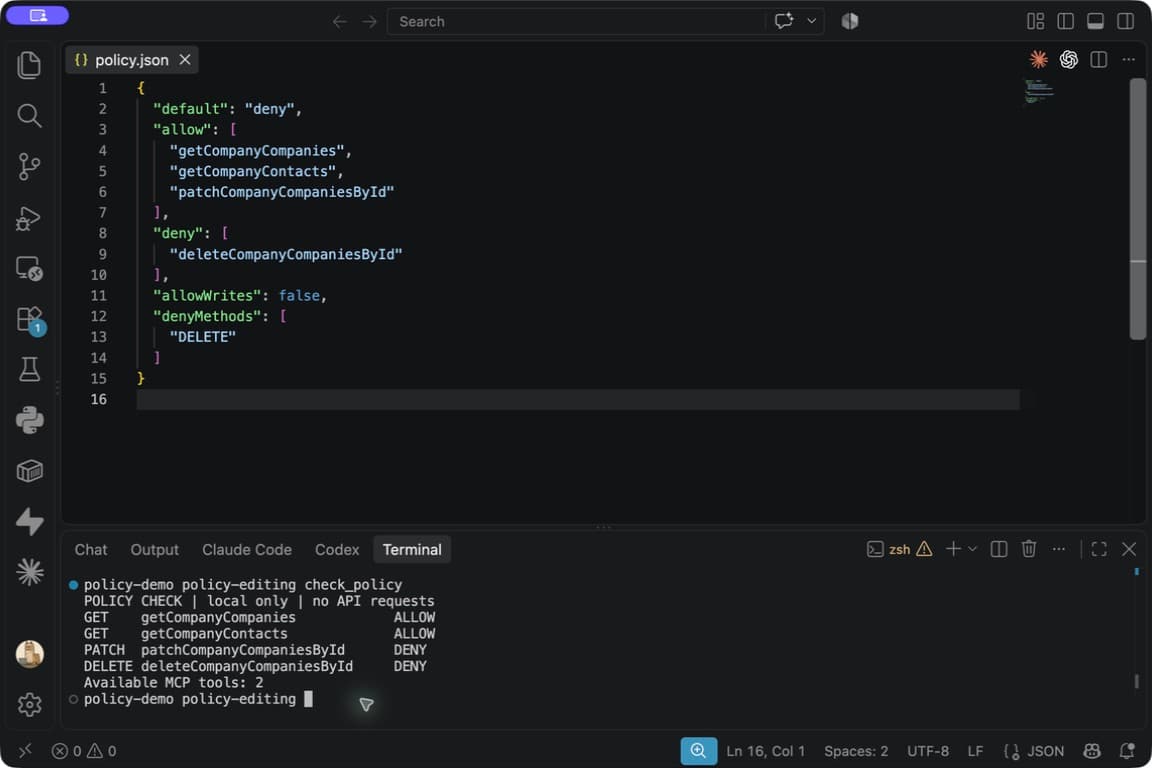
Microsoft's announcement says Windows exposes a setting called "Default install printer using Windows Ready Print." Admins can also manage driver ranking through Group Policy under Local Computer Policy, Administrative Templates, Printers, using the "Configure Windows Ready Print driver ranking" policy.
For managed endpoints, decide the stance before July 2026:
| Client profile | Sensible default |
|---|---|
| Simple office printing, newer Mopria devices, few specialty features | Prefer Windows Ready Print for new installs after pilot testing. |
| Mixed printer fleet with copiers, label printers, and line-of-business apps | Pilot by site or department. Keep OEM driver exceptions documented. |
| Regulated or security-sensitive client ready for a hard security posture | Evaluate Windows Protected Print Mode only after compatibility testing. |
| Legacy-heavy client with print servers and fragile apps | Do not change defaults blindly. Quote assessment and remediation first. |
If the client uses Intune for device policy, pair the setting with your normal endpoint change process. If they are still GPO-first, document the GPO owner and rollback state.
The worst answer is letting each tech make a different printer choice during ticket work.
4. Pilot with real users and real jobs
Pick pilot users based on workflows, not friendliness.
You want the person who prints invoices, labels, checks, shipping forms, medical intake forms, court filings, construction drawings, or production tickets. The cheerful user who prints one PDF a month is not the pilot. That person is a false sense of safety wearing a cardigan.
For each pilot, test:
- printing from the real business app
- the real printer or copier queue
- paper size and tray selection
- duplex, color, and finishing options
- labels or specialty stock
- secure print and accounting codes
- scanner behavior for multifunction devices
- remote, RDS, or hosted-app scenarios if used
- uninstall and reinstall behavior for the queue
Write the pass and fail criteria before the pilot. "No one screamed" is not a test plan.
5. Define rollback and exception handling
Rollback needs to be boring and pre-approved.
Document:
- which policy or setting changes back
- which queues get removed and re-added
- which OEM driver package is approved for the exception
- who can approve a rollback during business hours
- who can approve a rollback after hours
- what evidence the MSP captures before reverting
- when the issue gets retested
- whether the client accepts the security and support tradeoff of keeping the legacy path
This is where your shared responsibility matrix earns rent. The MSP can own technical execution. The client still owns business validation, app vendor access, and risk acceptance.
6. Get client signoff in plain English
Do not bury the decision in ticket notes.
Use a short approval record:
We reviewed your printer fleet for the July 2026 Windows Ready Print driver selection change. Devices A, B, and C passed pilot testing with Windows Ready Print. Device D requires the OEM driver because accounting codes and finishing options are business-critical. We will prefer Windows Ready Print for new eligible installs except documented exceptions. The client owner has approved the pilot result, rollback plan, and exception list.
That paragraph is not fancy. It is useful.
It also protects the account team later when someone asks why one copier still uses the vendor driver.
How MSPs should quote the work
Do not hide this inside normal helpdesk time.
Windows Ready Print readiness touches inventory, endpoint policy, print servers, user testing, line-of-business apps, vendor drivers, client approvals, and after-hours validation. That is project work.
A clean quote can break the work into five parts:
| Line item | What it includes | What it should not silently include |
|---|---|---|
| Assessment | Printer inventory, driver review, workflow mapping, Mopria or IPP check, risk list. | Firmware remediation, app vendor work, print server rebuilds. |
| Pilot | Test users, test plan, printer reinstall flow, feature validation, documented results. | Broad rollout, after-hours work, every obscure printer feature. |
| Cutover | Policy update, queue deployment cleanup, documented exceptions, user comms. | Replacing unsupported printers, fixing broken legacy apps. |
| After-hours validation | Scheduled testing for finance, warehouse, medical, legal, or production workflows. | Unlimited next-day support or unrelated printer cleanup. |
| Support handoff | Service desk notes, exception list, rollback steps, client approval record. | Future printer fleet standardization unless quoted. |
That line-item structure keeps the client conversation honest.
A small client with three modern printers might need a light assessment and quick pilot. A multi-site client with print servers, copiers, label printers, and hosted apps needs a real project. Both are valid. They should not be priced the same because the word "printer" is in both.
If your MSP already runs quarterly planning, this belongs on the roadmap next to Windows 10 cleanup, Intune policy cleanup, and print server retirement. If you only talk about it after July 2026 tickets arrive, you are negotiating under smoke.
Where Scopable fits
Scopable is built for this exact messy middle: assessment, gap analysis, roadmap, budget, quote, approval, and project handoff in one workflow.
Windows Ready Print readiness is not a single checkbox. It is a set of client-specific findings that need owners, decisions, costs, exceptions, and follow-through. Scopable helps MSPs turn those findings into roadmap items and quoted work instead of leaving them scattered across tickets, spreadsheets, and someone's memory.
If you want a cleaner way to turn printer readiness findings into scoped client work, start your Scopable free trial.
The calm way to handle July 2026
Microsoft is pushing Windows printing away from legacy driver sprawl. Good. Print drivers have been a support and security headache for years.
But good platform direction does not erase client reality.
Some clients will be fine with Windows Ready Print as the default for new eligible installs. Some will need a few OEM driver exceptions. Some need a bigger print modernization project because the July 2026 change exposes how brittle the current setup already is.
That is the MSP opportunity: stop treating printers like random tickets and start treating them like business workflows.
Inventory the fleet. Pilot the risky workflows. Decide policy. Document exceptions. Quote the work. Get signoff.
Printers are still annoying. At least the scope does not have to be.
Frequently Asked Questions
What does Windows Ready Print mean for MSPs in July 2026?
Starting in July 2026, new eligible printer installations on Windows will prefer Windows Ready Print where supported. MSPs should inventory printer queues, test business workflows, set policy intentionally, document OEM driver exceptions, and get client signoff before broad rollout.
Is Windows Ready Print the same as Windows Protected Print Mode?
No. Windows Ready Print is the standards-based print path that uses IPP and the Windows inbox driver where supported. Windows Protected Print Mode is a stricter security mode that exclusively uses Windows Ready Print and can remove printers that depend on third-party drivers.
Should MSPs disable Windows Ready Print by default?
Not automatically. MSPs should prefer Windows Ready Print for simple, compatible printer fleets after pilot testing, but keep documented OEM driver exceptions for copiers, label printers, accounting codes, finishing options, old print servers, and fragile business apps.
How should MSPs quote Windows Ready Print readiness work?
Quote it as project work: assessment, pilot, cutover, after-hours validation, and support handoff. Do not bury printer inventory, policy changes, business-app testing, rollback planning, and vendor-driver exceptions inside normal helpdesk time.